
How to use Canva like a Pro
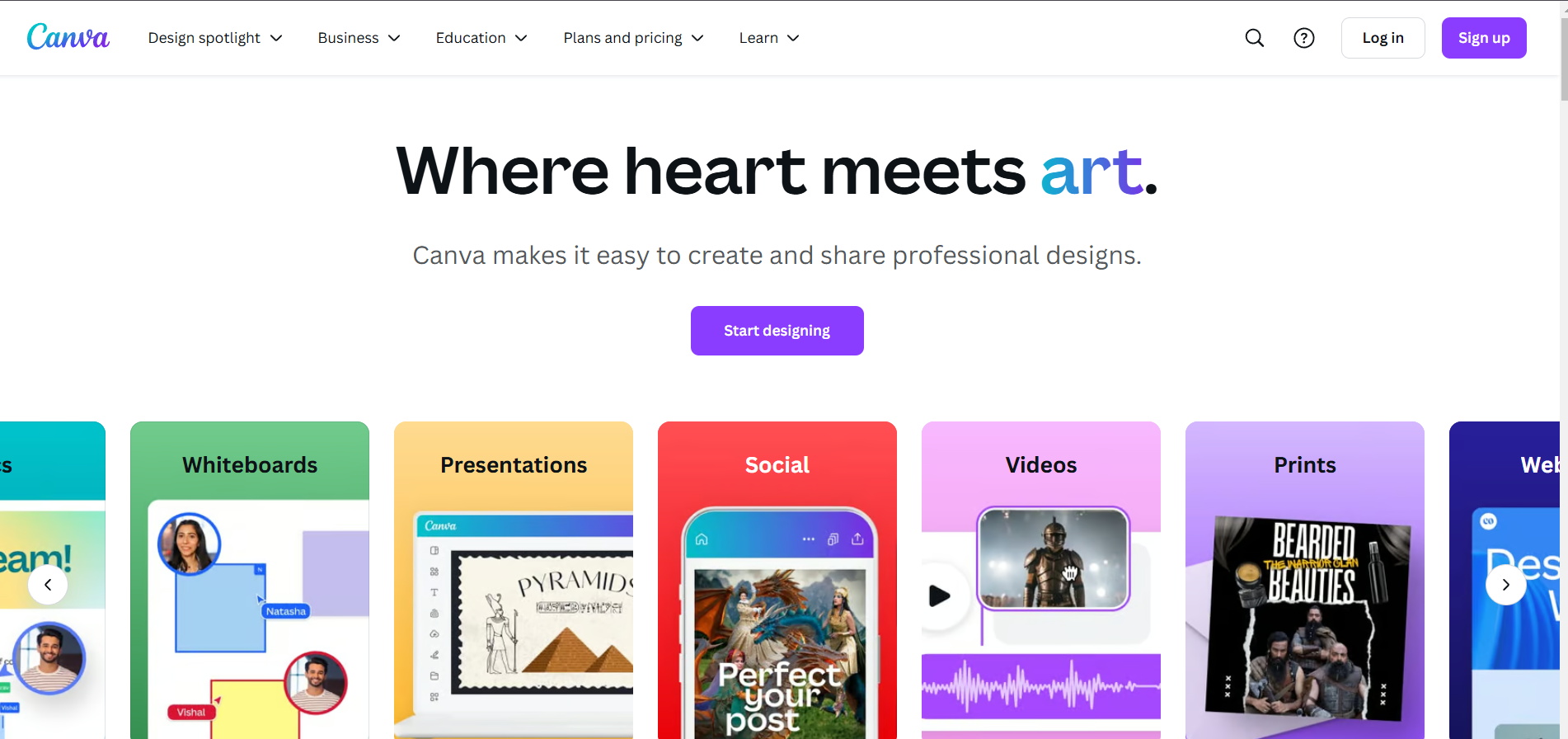
Canva is a powerful, easy-to-use design tool that allows anyone to create stunning graphics, presentations, and other visuals. Here’s a guide on how to use Canva effectively for professional and creative projects.
1. Getting Started with Canva
- Sign Up: Canva offers both free and paid options (Canva Pro and Canva for Teams). The free version includes a wide range of features, while Pro provides additional templates, elements, and storage.
- Explore Templates: Canva’s library has thousands of templates for various formats—social media posts, presentations, posters, and more. Use the search bar to quickly find templates tailored to your project type.
2. Customize Your Design
- Use the Drag-and-Drop Interface: Canva’s interface is drag-and-drop, making it simple to add, move, or resize elements like text, images, and icons.
- Choose a Color Palette: Consistent color schemes are essential for branding. Use Canva’s Color Picker or upload your own brand colors with Canva Pro to keep your designs cohesive.
- Select Fonts Wisely: Canva offers a wide range of fonts; aim to use 1-3 fonts to keep the design balanced and professional. You can upload custom fonts with Pro.
3. Leveraging Canva’s Features
Elements and Images
- Elements: Canva has a vast library of shapes, icons, and illustrations to enhance your design. Use the search bar to find specific elements related to your theme.
- Photos: Canva’s photo library offers free and premium stock images. Choose high-quality images to give your design a polished look, or upload your own.
Canva’s Text and Effects Tools
- Text Effects: Add emphasis with text effects like shadows, curves, and neon glow. Try effects to make your text stand out but avoid overusing them to keep designs professional.
- Transparency and Layers: Adjust element transparency for subtle effects or layer multiple elements to create a sense of depth.
Animate Designs (Pro Feature)
- Add animations to your design for eye-catching presentations or social media posts. Canva Pro allows you to animate individual elements or entire slides.
Brand Kit (Pro Feature)
- Canva Pro’s Brand Kit lets you store brand colors, logos, and fonts, ensuring consistency across all designs. This feature is invaluable for teams working on brand-aligned projects.
4. Optimizing for Different Platforms
- Resize Designs with Magic Resize (Pro Feature): Create one design and resize it for multiple platforms with a single click. This is especially useful for social media where image dimensions vary.
- Export Options: Canva offers export options for PNG, JPG, PDF, and MP4 (for animated designs). Choose the format based on where your design will be used (e.g., PDF for print, MP4 for video).
- Download Quality: For web use, select standard quality; for printing, choose high-quality PDF.
5. Collaborate and Share
- Collaborate in Real-Time: Canva for Teams allows multiple users to edit a design simultaneously, ideal for team projects.
- Shareable Links: Share a view-only or editable link with clients or colleagues to gather feedback or get help on designs.
6. Tips for Maximizing Canva’s Effectiveness
- Organize with Folders: Canva lets you create folders to store designs, making it easier to organize and retrieve them for future use.
- Practice Consistency: For brand consistency, stick to set fonts, colors, and layouts in all your designs.
- Experiment with Canva Learn: Canva offers tutorials and articles on design basics and advanced techniques through their Canva Learn platform.
Conclusion
Using Canva effectively means combining its intuitive tools with a good understanding of design principles like alignment, contrast, and color harmony. Whether you’re creating graphics for social media, presentations, or marketing materials, Canva’s flexibility and wide feature set make it easy to produce professional, visually appealing content. By exploring its many features and personalizing your designs, you’ll be able to bring your ideas to life with confidence and ease.


