how do i use search live to identify the signs showing on my car dashboard?
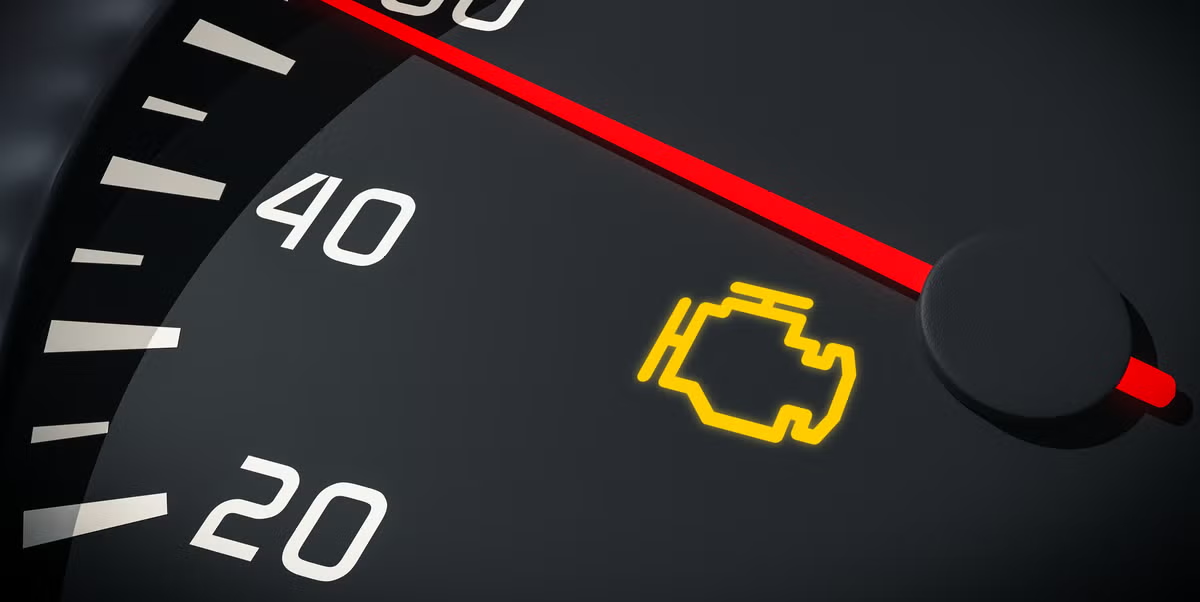
Using “Search Live” (camera-based search) to identify dashboard warning lights is actually one of the fastest and smartest ways to diagnose your car issues in real time.
Here’s exactly how to do it 👇
🚗 How to Use Search Live for Dashboard Signs
📱 Option 1: Use Google Lens (Best & Free)
Steps:
- Open Google app or Google Photos
- Tap the camera icon (Lens)
- Point your camera at the dashboard warning light
- Tap the symbol on screen
- It will show:
- Meaning of the symbol
- Possible issues
- Suggested fixes
👉 Works instantly for most common symbols
📷 Option 2: Use Google Assistant
You can say:
“Identify this symbol”
Then:
- It opens camera mode
- Scans the icon
- Gives results
🍏 Option 3 (iPhone): Use Apple Visual Look Up
- Take a photo of dashboard
- Open it in Photos app
- Tap the info (ℹ️) icon
- It may recognize symbols
⚠️ Important Tip (Very Useful)
Dashboard lights are usually:
- Red 🔴 → Serious (stop car immediately)
- Yellow/Orange 🟡 → Warning (check soon)
- Green/Blue 🟢 → Normal function
🔍 Pro Trick (More Accurate Results)
Instead of just scanning:
👉 Add a voice or text query like:
- “car dashboard light meaning”
- “engine warning light symbol”
This improves accuracy a LOT.
🚫 Limitations You Should Know
- Some symbols are car-brand specific
- Lens may show similar but not exact icons
- Low light can reduce accuracy
🧠 Smart Backup Plan (Highly Recommended)
If search results are confusing:
- Take a clear photo
- Upload it here
👉 I can identify the exact issue for you instantly
🚀 Best Workflow (Fastest Method)
- Open Google Lens
- Scan dashboard
- If unclear → send image here
- Cross-check before taking action
🏁 Final Advice
Search Live tools are great for:
- Quick identification
- Basic understanding
But for critical warnings (engine, brake, oil):
👉 Always confirm before driving further


